Connect to Claude Code
Add your PD MCP server through Connectors in the Claude app.
Before you start
Open your MCP server in the PD dashboard and copy its complete endpoint from Tools. Make sure the server is enabled and has at least one enabled tool. Use the hosted HTTPS URL, such as https://app.predictabledialogs.com/mcp/YOUR_ENDPOINT.
Lets start with a MCP server which has Public access.
Open Connectors
- Click your profile image in the bottom-left corner of the Claude app.
- Click Settings.
- Under Customize, select Connectors.
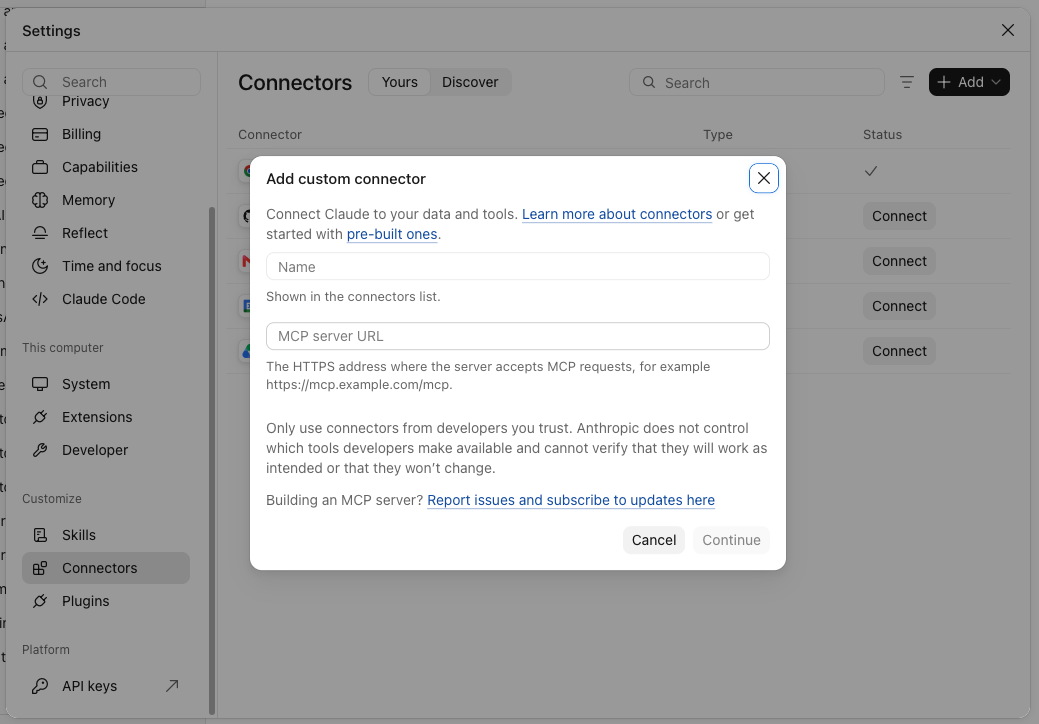
- Click + Add, then Add custom connector.
Enter the server details
- In Name, enter a name of your choice, such as
my_mcp_server. It does not need to match the server name in PD. - In MCP server URL, paste the complete endpoint copied from the PD dashboard.
- Click Continue and then Continue anyway if prompted to proceed.
Choose authentication and connect
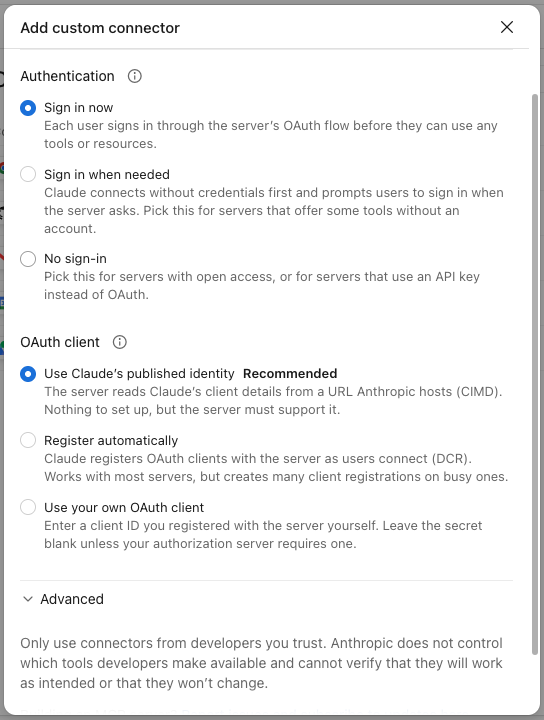
- Under Authentication, select No sign-in.
- Click Add to add the MCP server.
- Then click Connect.
The screenshot shows the authentication choices before selecting No sign-in:
If your PD MCP server requires an access token
In the Authentication modal, look for Request headers, add a header before clicking Add:
- Key:
Authorization - Value:
Bearerfollowed by the full token you created in PD.
See Claude's custom connector guide for request-header support.
Alternative: Claude Code CLI
For an access-token-protected server, first create a PD access token in the server's organization. With the Claude Code CLI installed, register the server from a terminal:
claude mcp add --transport http --scope user my_mcp_server \
  "https://app.predictabledialogs.com/mcp/YOUR_ENDPOINT" \
  --header "Authorization: Bearer YOUR_PD_ACCESS_TOKEN"
Replace the placeholders before running it. A command containing your token may be saved in shell history; keep that history private.
Run claude mcp list to check the connection, or enter /mcp in a Claude Code terminal session. See the official Claude Code MCP instructions.