Connect to Codex
Before connecting, enable access-token authentication, create a PD access token, and copy your MCP endpoint from Tools.
Using the ChatGPT app
The easiest way to add your MCP server is through the ChatGPT desktop app.
Open the MCP setup page
- Click your profile icon in the bottom-left corner, then click Settings.
- Under Integrations, select Plugins.
- Select the MCPs tab.
- Click Add, then choose Add MCP server from the dropdown. The other options are Create plugin and Add a marketplace.
Enter the connection details
- Enter a Name of your choice, such as
my_mcp_server. This is a name for the connection in your app; it does not need to match the server name in Predictable Dialogs. - Select Streamable HTTP as the Type.
- In URL, paste the complete MCP endpoint copied from Tools in the PD dashboard.
- Choose one of the authentication methods below.
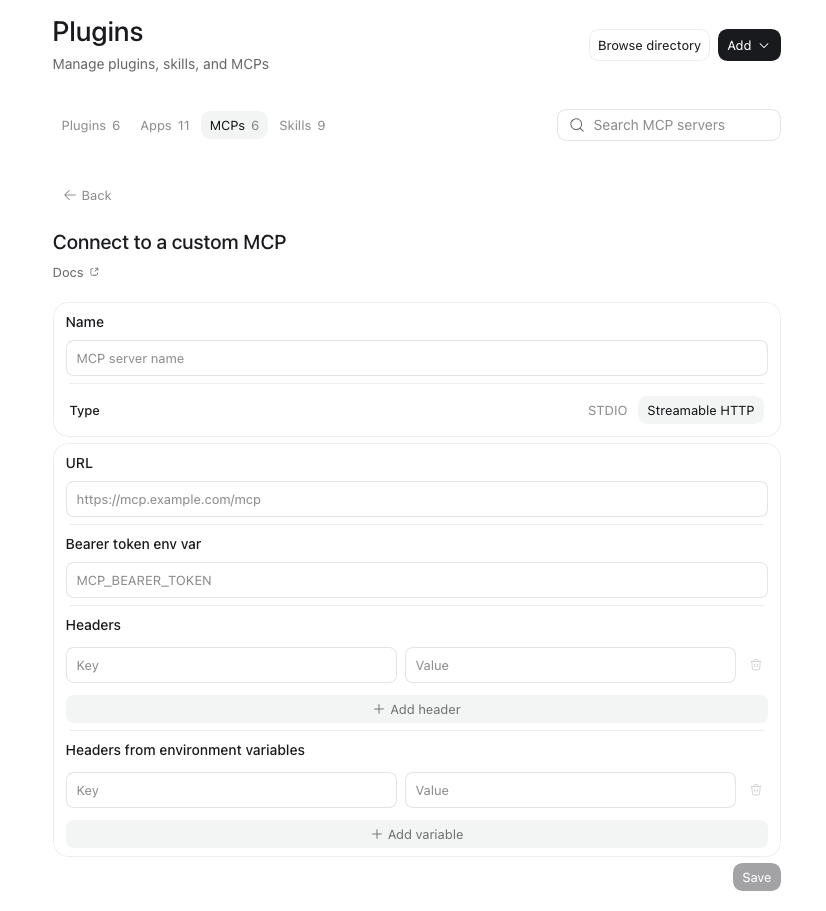
Option 1: Enter the token in Headers
Under Headers, fill in:
| Field | Value |
|---|---|
| Key | Authorization |
| Value | Bearer followed by your full PD access token |
For example, the value would look like this:
Bearer sk-1abcdefghijklmnopqrstuvwxyz0
This is an example token only. Replace it with the token you created in PD. Do not enter quotes, and use one space between Bearer and the token. Leave Bearer token env var and Headers from environment variables empty when using this method.
Click Save. Only the endpoint URL and access token come from the PD dashboard; the connection name is your choice.
Option 2: Use a bearer token environment variable
If your token is already available to the app through an environment variable, enter that variable's name, such as PD_ACCESS_TOKEN, in Bearer token env var. The variable's value must be the raw access token, without the Bearer prefix.
Leave the Headers authorization entry empty when using this method, then click Save. The environment variable must be available to the app process; setting it in a separate terminal does not update an already-running app.
After saving, use the connection in Codex and ask it to call one of your configured tools. If the app offers a restart action to apply the connection, use it.
How the app stores your connection
The app writes the configuration for you; you do not need to edit config.toml. For a connection named my_mcp_server using Headers, the saved entry looks like this:
[mcp_servers.my_mcp_server]
enabled = true
url = "https://app.predictabledialogs.com/mcp/YOUR_ENDPOINT"

[mcp_servers.my_mcp_server.http_headers]
Authorization = "Bearer sk-1abcdefghijklmnopqrstuvwxyz0"
my_mcp_server comes from the name entered in the app. It is not a required name or a PD server identifier. The URL and token above are placeholders; your saved entry contains the values you entered. Keep configuration containing tokens private.
Alternative: Codex CLI
With the Codex CLI installed, you can register the server using a persistent bearer token environment variable.
-
Open your shell startup file in a text editor:
~/.zshrcfor Zsh or~/.bashrcfor interactive Bash. Add this line, replacing the placeholder with your full PD token:export PD_ACCESS_TOKEN="YOUR_PD_ACCESS_TOKEN"Keep this file private and do not commit it to a public dotfiles repository. The value is the raw token, without the
Bearerprefix. -
Save the file and reload it in your terminal. Run the command for your shell:
# Zsh
source ~/.zshrc
# Bash
source ~/.bashrc -
Register the server from that terminal:
codex mcp add my_mcp_server \
  --url "https://app.predictabledialogs.com/mcp/YOUR_ENDPOINT" \
  --bearer-token-env-var PD_ACCESS_TOKEN
Replace the URL with your PD endpoint. You can replace
my_mcp_serverwith your preferred connection name. Codex stores the variable name, not its token value. -
Start a new Codex CLI process from the same terminal with
codex, so it inherits the variable.
The token must be available to the process that connects to the MCP server. Sourcing a shell startup file updates that shell and processes started from it; it does not update an already-running app or background process.
An independently launched app or background service is not guaranteed to read .zshrc or .bashrc. Supply the variable through that process's launch environment and restart it after changes. For the ChatGPT app, entering the token in Headers as described above is the simplest option when its environment is not configured.
Run codex mcp list to see the configured server. See the official Codex MCP documentation for more options.