- Published on
What Chatbots Can Do When They Use the User's Permissions
- Authors

- Name
- Jai
- @jkntji
Predictable Dialogs now supports pass-through auth for API Actions, which means your website chatbot can call your backend using the signed-in user's token instead of a shared master credential.
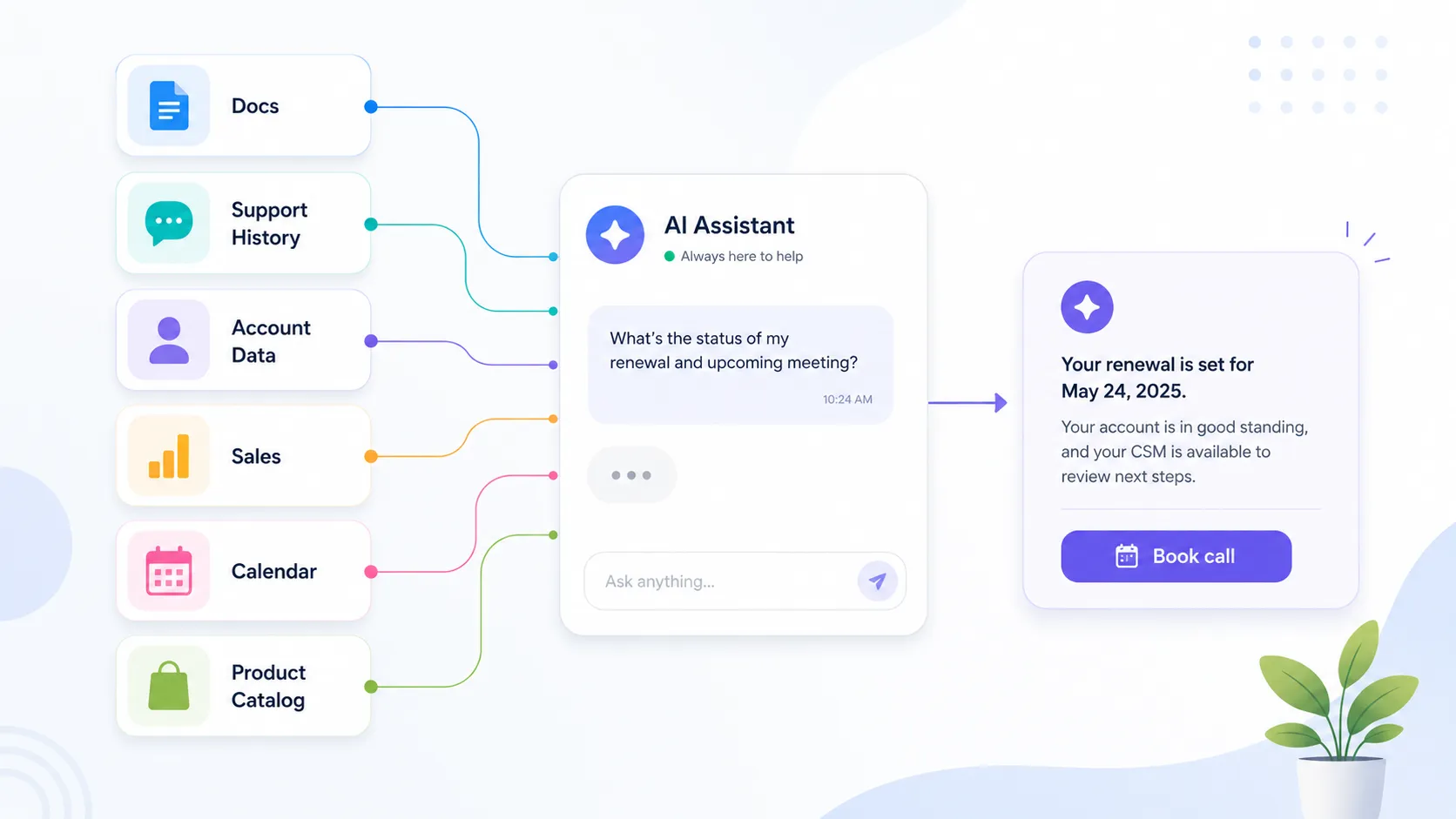
Most people still think of a chatbot as a box that answers questions.
That is useful, but it is only the first step. The more interesting version is a chatbot that can do things inside your app. It can look up account data, update records, trigger workflows, and complete routine tasks without making the user hunt through menus.
But there is one important rule: the chatbot should not get secret superpowers.
If a user asks the chatbot to do something inside the app, the chatbot should act with that user's permissions. It should not use a master key that can see every account. It should not quietly bypass the same access controls your app already enforces. It should behave like a helpful assistant sitting beside the user, clicking the buttons the user is already allowed to click.
That is the idea behind user-permissioned chatbot actions.
The Simple Version
Imagine a helpful assistant living inside your product.
The user types:
Update my billing address.
The chatbot understands the request, calls the right backend endpoint, and updates the address. From the user's point of view, it feels like the app understood what they wanted and handled it.
From the platform's point of view, nothing magical happened. The chatbot sent the request with the user's authorization. Your backend checked permissions the same way it would if the user clicked the button in the UI.
That difference matters.
The chatbot is not acting as a separate all-powerful service account. It is acting as the signed-in user.
1. Change My Info
The most obvious use case is account self-service.
A user might ask:
Update my shipping address.
Or:
Cancel my subscription at the end of this billing period.
Or:
Change my notification settings so I only get weekly emails.
These are normal product actions. Today, users usually need to find the correct settings page, scan the labels, open a form, make the change, and save it.
A user-permissioned chatbot can compress that workflow into a conversation. It can ask for any missing detail, confirm the action when needed, and call the same backend endpoint your UI already uses.
The permission boundary stays intact. If the user can update their own profile, the chatbot can help. If the user cannot change billing settings, the chatbot cannot do it either.
2. Show Me My Stuff
Some chatbot actions are not about changing anything. They are about retrieving the right personal data quickly.
A user might ask:
What did I order last week?
Or:
How much did I spend this month?
Or:
Which invoices are still unpaid?
This is where user authorization is critical. The chatbot should answer from that user's account, not from a shared admin credential.
When the chatbot uses the user's login, your backend can apply the same checks it already trusts:
- Which customer account does this user belong to?
- Which orders can this user view?
- Which team records are visible to this role?
- Which billing objects are restricted?
The chatbot becomes a faster interface to the user's own data. It does not become a shortcut into everyone else's data.
3. Do My Job Stuff
Inside business software, the most valuable actions often depend on role-based permissions.
A manager might ask:
Approve Priya's expense report.
A finance user might ask:
Mark this invoice as reviewed.
A support lead might ask:
Assign the urgent tickets to the weekend queue.
These tasks are perfect for chatbot automation because they are common, repetitive, and often buried inside dashboards.
But they are also sensitive. If the chatbot is connected incorrectly, it can blur the line between "helpful" and "dangerous."
With user-permissioned actions, that line stays clear. If the signed-in user is allowed to approve an expense report, the chatbot can help them do it. If they are not allowed, the backend rejects the action just as it would reject a manual UI request.
The AI does not decide who has authority. Your application does.
4. Do a Bunch of Steps for Me
The real productivity gain appears when the chatbot can chain several allowed actions.
A user might ask:
Book a meeting with Anika tomorrow afternoon, then message her that I sent the invite.
That one request may involve multiple steps:
- Check available calendar slots.
- Create the meeting.
- Add the right attendee.
- Send a message or notification.
- Report back with the final status.
Each step should happen as the user. If audit logs are reviewed later, the system should show that the user created the meeting and sent the message through an assistant-powered workflow.
This is good for trust. It is also good for debugging. When something fails, you can see exactly which user requested the action, which permissions were used, and which backend call rejected or completed the step.
5. Set Things Up in My Account
Another strong use case is onboarding and account setup.
A user might ask:
Invite Maya to my team.
Or:
Create a new API key for this project.
Or:
Turn on two-factor authentication reminders for everyone in my workspace.
These actions are powerful because they affect account access and configuration. That is exactly why they should be tied to the current user's permissions.
If the user is a workspace admin, the chatbot can help invite teammates or configure settings. If the user is a regular member, the chatbot can explain that they do not have permission and point them to the right admin.
Again, the chatbot does not expand the user's authority. It makes authorized workflows easier to complete.
Why This Architecture Feels Safer
The safest chatbot architecture usually respects the systems you already have.
Your app already knows:
- Who the user is
- Which organization they belong to
- Which role they have
- Which resources they can read
- Which actions they can perform
A user-permissioned chatbot should plug into that model instead of replacing it.
This is especially important for SaaS products, internal tools, marketplaces, healthcare portals, finance apps, and any product where users should only see their own data.
The chatbot becomes a new interface layer. It does not become a new permission system.
What Pass-Through Auth Means
Pass-through auth is the mechanism that makes user-permissioned chatbot actions practical.
When a visitor is signed in to your website or app, your frontend already has a way to get that user's access token. With pass-through auth, the Predictable Dialogs web widget asks your page for that token on each chat request and sends it to the Predictable Dialogs backend. When an API Action is configured to use Pass-through from the client, Predictable Dialogs forwards that token to your HTTP endpoint as a bearer token.
Predictable Dialogs does not store the token. It is passed through for the current request so your backend can validate the user, apply your existing authorization rules, and complete or reject the action.
This is what keeps the permission model simple: your backend remains the authority. The chatbot can help the user move faster, but it cannot skip your authentication and authorization checks.
You can read the setup guide here: Pass-through auth documentation.
The Product Experience
For the user, the experience is simple:
Can you update my address?
The chatbot replies:
Sure. What is the new address?
The user provides the details. The chatbot confirms. The app updates the record.
Behind the scenes, the important part is authentication. The chatbot request carries the user's token to your backend. Your backend validates it, applies the normal authorization rules, and calls the internal or external endpoint using that user context.
If the token is missing or expired, the right answer is not a vague technical error. The right answer is simple:
Please sign in.
That keeps the experience understandable while keeping the system secure.
What Builders Should Remember
When you add action-taking chatbots to your product, the question is not only "What can the bot do?"
The better question is:
Whose permission is the bot using?
If the answer is "a master key," you need to be careful. A master key may be useful for narrow backend jobs, but it is risky for user-specific actions. It can make it too easy for one conversational path to touch data or workflows outside the user's real scope.
If the answer is "the signed-in user's token," the model is much easier to reason about. The chatbot can do useful work, but the application remains the authority.
That is the right mental model for modern product chatbots.
Not a talking FAQ.
Not a secret admin.
A helpful assistant that acts as the user, inside the user's existing permissions.