- Published on
Create an MCP Server Without Code: Setup and 5 Use Cases
- Authors

- Name
- Jai
- @jkntji
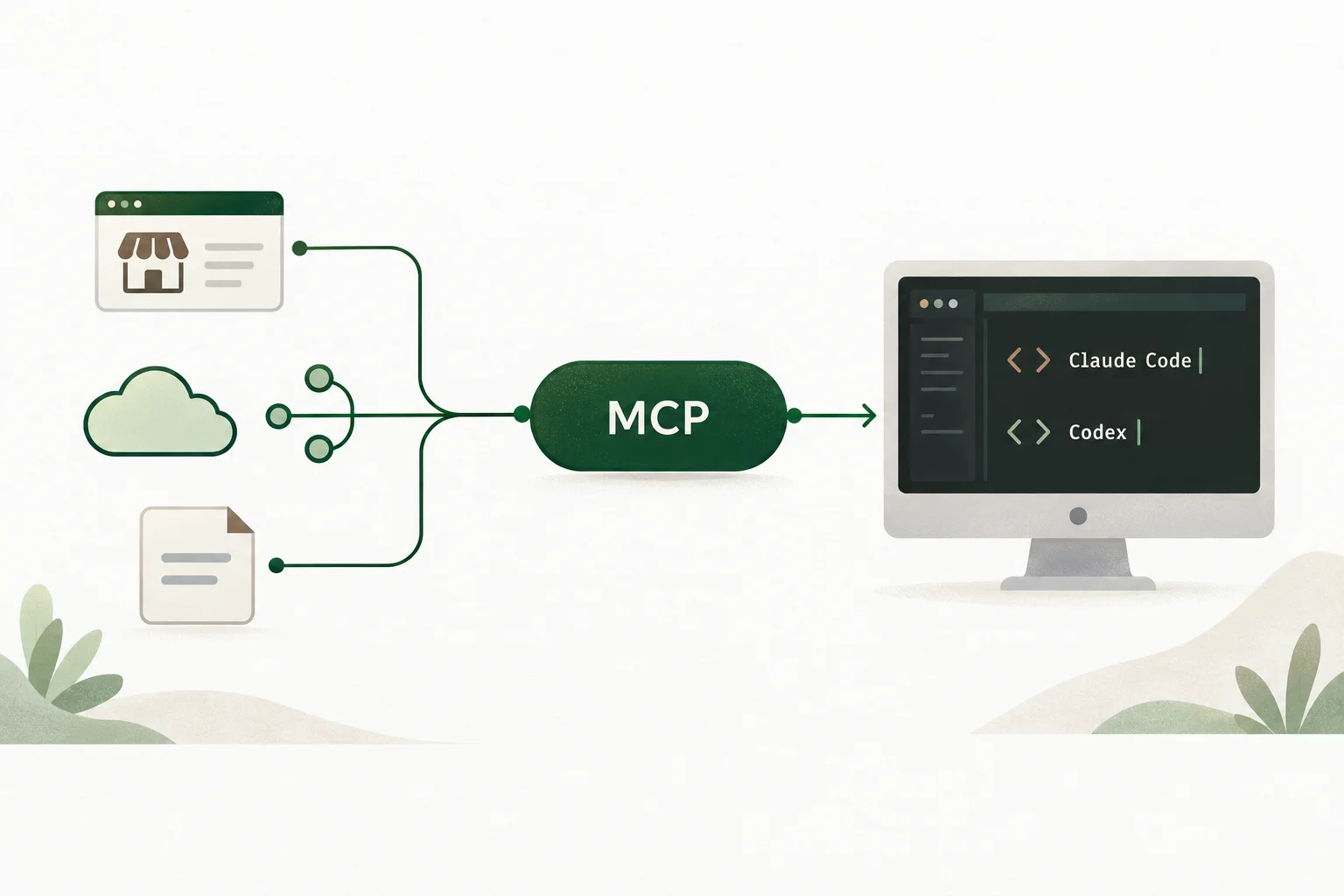
An AI assistant can help draft an answer, but it needs connected tools to search your company's documents, look up an order, or create a lead in your CRM. An MCP server gives AI clients (e.g claude code, codex) a standard way to discover and call those tools.
With Predictable Dialogs, you can create an MCP server without writing server code. Add documents, configure HTTP API actions, or connect Google Calendar, then give your AI client a single endpoint URL. You can also reuse tools you have already configured for your agents.
This guide walks through the setup and five practical MCP server use cases: client projects, company knowledge, HR policies, CRM updates, and existing REST APIs.
What is an MCP server?
The Model Context Protocol (MCP) is an open standard for connecting AI applications to external data and capabilities. An MCP server can publish tools that a client discovers and calls, such as a document search or an API request. See the official MCP introduction for the protocol's client-server architecture.
The client (claude code, codex, open code) is the application where you interact with the AI. The server provides the tools. Your documents, APIs, and connected apps remain the sources those tools use.
For example, an assistant could respond to “What is the return policy for this product?” by calling a knowledge tool, then use an order lookup tool when you ask about a particular purchase. The connected client determines which tools to call and how to use the results.
An MCP server does not replace your customer-facing chatbot. In Predictable Dialogs, agents serve conversations on websites and WhatsApp; MCP servers expose tools to external clients. Both can use the same knowledge and action tools.
How to create an MCP server in Predictable Dialogs
1. Create your server
Sign in to Predictable Dialogs and click Create MCP server on the dashboard, or choose it from the Create menu. Enter a name if you want one, then click Create.
The server opens on its Tools page with an automatically generated endpoint. Use the copy icon to copy the complete URL.
You can edit the endpoint after creation. Choose Edit endpoint from the three-dot menu on the server's card on the MCP servers page, or from the three-dot menu at the top of its Tools page. Enter only the part after /mcp/, then save. If that value is already in use, choose another. Update connected clients with the new URL whenever you change it.
The MCP server creation guide covers these steps in detail.
2. Add knowledge and actions
The Knowledge and actions card gives you three entry points:
| Option | What it adds | Setup guide |
|---|---|---|
| Knowledge | Documents that an external agent can search | Knowledge Base Setup |
| Action → Use any API | An HTTP request to your own API, with configured authentication and inputs | HTTP Tool |
| Action → Connect an app | A supported app connection, such as Google Calendar | App Connection Tool |
| Add existing tool | An eligible tool already created in your organization | MCP configuration and tools |
Existing tools are grouped by agent in the picker. Tools already attached to the server are excluded, so you cannot add the same one twice.
3. Connect your AI client
Paste the endpoint into your client's remote MCP server configuration. Clients such as Claude Code and Codex support remote MCP connections; use the setup instructions for your client.
After adding tools, reconnect or refresh the server in the client so it discovers them. Try a specific request that needs one of your tools, such as “Find the warranty policy for this product.”
4. Inspect the first tool call
Open Activity in your server, or click View activity on its dashboard card. Select an invocation to inspect its inputs, returned result, status, and any recorded error. Timing and client details appear when available.
Activity records tool calls, not the client's full conversation. It helps you check whether the right arguments reached the tool and whether the tool returned a useful result. See the MCP Activity guide.
Five practical MCP server use cases
1. Deliver MCP endpoints for agency clients
If you build chatbots or automations for businesses, an MCP endpoint can be another deliverable: a way for a client's team to use its documents and APIs from compatible AI tools.
Create a server for the project, add the client's approved documents, and configure actions for its systems. Hand over the endpoint with a short connection guide and a few example requests. Use Activity during acceptance testing to show which tool ran and what it returned.
For example, a product support project could offer a knowledge search for installation instructions and an HTTP action for checking an order. The same underlying capabilities can support a website agent and an external AI client.
Be deliberate about shared tools. Add existing tool shares configuration; it does not clone it. Editing one affects every linked agent and MCP server. Use separate tools and credentials when clients need different data or behavior. Separate endpoint URLs alone should not be treated as an access-control policy.
2. Make company knowledge searchable from AI assistants
Upload product documentation, FAQs, procedures, or support material as a knowledge tool. A connected client can then search that material when answering a relevant question.
This avoids repeatedly attaching the same files to individual chats. Maintain the uploaded knowledge in Predictable Dialogs so connected clients can search the updated material. Editing a file on your computer does not automatically update the uploaded copy; replace or update the documents in the knowledge tool.
Good source material matters more than volume:
- Use clear titles and descriptive section headings.
- Keep instructions for different products or versions easy to distinguish.
- Remove superseded documents that could produce conflicting answers.
- Test with real questions and inspect the retrieved results when an answer is weak.
The Knowledge Base and RAG guide explains document preparation and retrieval. A useful first test is a question with a specific, verifiable answer in one of your files.
3. Build an HR policy helper
An HR policy helper applies the knowledge pattern to recurring questions: “What is the expense limit?” or “Where is the onboarding checklist?” Add approved handbooks, leave policies, benefits explanations, and onboarding instructions to a knowledge tool.
Include effective dates and the regions or roles each policy applies to. Remove old versions when policies change, and direct ambiguous or case-specific questions to the relevant person.
Distinguish policy questions from personal account data. A handbook can explain how leave is calculated; it cannot tell an employee their remaining balance. That requires a separate API integration with appropriate authorization. Choose documents and access settings suitable for the intended audience before connecting an HR assistant.
Use Activity to review the search inputs and results the tool actually received. It can reveal gaps in the documents, but it is not a transcript of everything an employee asked their AI client.
4. Capture leads and update your CRM
A knowledge tool helps an assistant retrieve information. An HTTP action lets it send data to a system that accepts API requests.
For lead capture, configure a POST action targeting your CRM API or an existing webhook. Define inputs such as name, email, company, and notes. When asked to add a prospect, the connected assistant can supply those fields and call the action.
Start with a narrow operation such as create_lead, with a description that explains when to use it. Mark required fields in the input schema and use choice fields where only specific values are accepted. Your receiving API should also validate inputs and enforce its own permissions.
Use Test request in the builder with sample data before relying on the action. It sends a real request, so use an appropriate test record or environment. Then make a call from your MCP client and inspect Activity to check the arguments, response, and status.
Configure the HTTP tool's authentication for the API it calls, using the supported connection options. Those API credentials and access to the MCP server are separate concerns. The HTTP Tool guide covers endpoint configuration, schemas, authentication, and testing.
5. Turn an existing REST API into MCP tools
If your product already has an API, you can configure focused HTTP actions instead of writing a custom MCP server implementation for each integration.
Each action targets one endpoint. For example:
GET https://api.example.com/orders/{orderId}
The assistant supplies orderId as an input, and the tool substitutes it into the path. A search endpoint can use query placeholders:
GET https://api.example.com/orders?status={status}&customerId={customerId}
Path inputs fill path placeholders, query inputs become query parameters, and remaining inputs are sent as JSON request data. For GET requests, keep inputs in the path or query unless your API explicitly expects a body.
You can define inputs in the UI, import example JSON, or paste a supported JSON Schema. Review imported fields and mark required inputs yourself.
A useful starting set is order lookup, inventory search, or ticket status. Add write actions such as creating tickets or updating records once you have verified the inputs, permissions, and results. Several small tools with specific names are easier to describe and test than one action intended to do everything.
Where Google Calendar fits
For scheduling, use Action → Connect an app and choose Google Calendar. The connection supports searching available slots and booking appointments, with settings for timezone, appointment duration, minimum notice, booking horizon, and weekly availability.
This can complement a sales or service workflow: a knowledge tool answers product questions, while a calendar tool helps arrange an appointment. Configure the connection using the Google Calendar app tool guide.
Website UI tools are specific to agents and are not part of an MCP server's tool set. For integrations beyond supported app connections, use an HTTP action backed by an API you can call.
Frequently asked questions
Can I create an MCP server without coding?
Yes. In Predictable Dialogs, create a server from the dashboard and add knowledge, HTTP actions, or a supported app connection. You do not need to write MCP server code. Custom API actions still need an existing API endpoint.
Can I edit my MCP server endpoint after creating it?
Yes. Choose Edit endpoint from the three-dot menu on the server card or at the top of its Tools page. Enter the part after /mcp/, save, and update connected clients with the new URL.
Can I reuse agent tools in an MCP server?
Yes. Add existing tool lets you select eligible tools from your organization. The configuration is shared rather than copied, so edits affect the agents and MCP servers using that tool.
How do I inspect MCP tool calls?
Open the server's Activity tab or choose View activity on its card. Select an invocation to inspect its inputs, result, status, and any available timing or error details.
Create your first MCP server
Pick one task you can verify: finding a policy, checking an order, or creating a test lead. Add the tool, connect your client, and inspect the first call in Activity. Expand the server once that workflow behaves as expected.
Create an MCP server in Predictable Dialogs, or follow the step-by-step MCP setup guide.