Configuring Knowledge Base
This guide covers the specific steps for setting up searchable files. For an overview of knowledge base and RAG concepts, document preparation, and best practices, see How Knowledge Base & RAG works.
Add a knowledge tool
- Open your agent's skill, or open the Tools tab of your MCP server.
- In Knowledge and actions, click Knowledge.
- Choose Use files as knowledge to open the upload section.
The following upload and configuration steps apply to both agents and MCP servers.
File Upload
The file upload section provides a streamlined interface for attaching files to your AI resource:
-
Choose Files:
- Drag and drop files into the modal
- Or click Select to browse for files
- Supported formats: PDF, TXT, DOCX, and more
-
Advanced Options (Optional):
- Chunk Size: Default 250 tokens (how large each text chunk should be)
- Chunk Overlap: Default 20 tokens (overlap between chunks for context)

Click to expand Advanced options to adjust chunk settings:
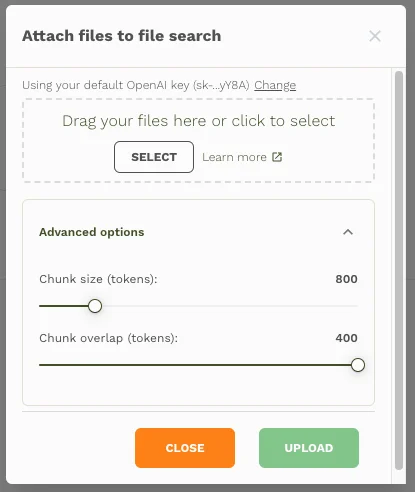
-
Upload: Click Upload to create the vector store and process files
-
Select API Key(optional): If you have configured your own OpenAI key, you can also change which key to use:
- Default: Your default OpenAI key if set
- Resource-specific: The key assigned to this AI resource
- Click Change to select a different key

Processing Status
After upload:
- Files are immediately uploaded to the vector store
- Processing takes a few seconds to minutes depending on file size
- You can close the modal during processing - it will continue in the background
- Status updates appear in the modal while open
Managing Vector Stores
Available Actions
The available actions for the vector store on the AI resource are:
- Update Files: Add new files or remove existing ones
- Change number of chunks: Adjust max number of chunks returned (1-20)
- Delete: Remove the entire vector store
Max Chunks Setting
Control how many relevant chunks the AI receives for each search:
- Lower values (1-5): More focused, faster responses
- Higher values (10-20): More comprehensive context, potentially slower
Best Practices
File Preparation
- Use clear, well-structured documents
- Include relevant headings and sections
- Avoid duplicate content across files
Chunk Configuration
- Smaller chunks (200-500 tokens): Better for precise information
- Larger chunks (800-1200 tokens): Better for context and relationships
- Higher overlap (20-500 tokens): Ensures context isn't lost between chunks
Performance Tips
- Start with default settings (250/20 tokens)
- Adjust max chunks based on response quality
- Monitor costs - more chunks = more tokens used per query
Troubleshooting
Poor Results: Try adjusting chunk size or uploading more relevant documents
Related Resources
- How Knowledge Base & RAG works - Learn about RAG concepts, document preparation, and optimization strategies
- Tools Overview → - Explore all available AI tool capabilities