Creating an OpenAI Agent
Estimated Time: 2 minutes
An OpenAI resource connects your agent to OpenAI models using your own OpenAI API key or using the Predictable Dialogs platform key. Predictable Dialogs supports the latest OpenAI models exposed in the model selector.
Before You Start (Optional)
You can bring your own OpenAI API key if you want to use your own OpenAI account.
- Open the OpenAI API keys page.
- Create or copy an API key. OpenAI only shows the full secret key when it is created, so store it securely.
- Make sure the account has billing and model access for the model you want to use.
Create From The Agents Page
Step 1: Create New Agent
- Sign in to Predictable Dialogs.
- Click + Create agent.
- Give a name to your agent.
Step 2: Configure OpenAI Settings
- Click ADD AI.
- Select OpenAI as the provider.
- Select an existing OpenAI API key, enter a new API key, or use platform defaults if available.
- Select the OpenAI model you want to use. The latest supported OpenAI models are listed in the model dropdown.
- Click Next to validate the key and model.
Step 3: Add The Instructions
- Choose what your agent is for and adjust the personality and purpose.
- Click Next.
- Review or edit the agent behaviour instructions.
- Click Save to create the resource and connect it to your agent.
Understand The Instruction Hierarchy
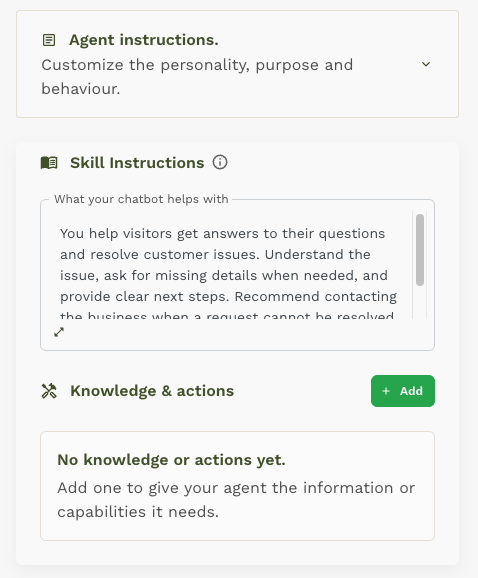
The Agent instructions section shown at the top is closed in the screenshot. It contains the provider and model details, along with the agent personality and purpose.
The Skill Instructions card contains the agent behaviour. It also contains Knowledge & actions and the Add button used to add documents, tools, and actions the agent can use. This separation is intentional: the agent personality stays separate from the skill, which defines what the agent knows how to do.
Next Steps
- Add knowledge and actions: Use the Tools overview to add searchable documents, API tools, app connections, or Custom Agent UI actions to the agent skill.
- Choose Channel: Embed your agent on your website or connect to WhatsApp.
- Test Your Agent: Send test messages to verify everything works correctly.