Update Webhooks in Meta
Estimated Time: 3 minutes
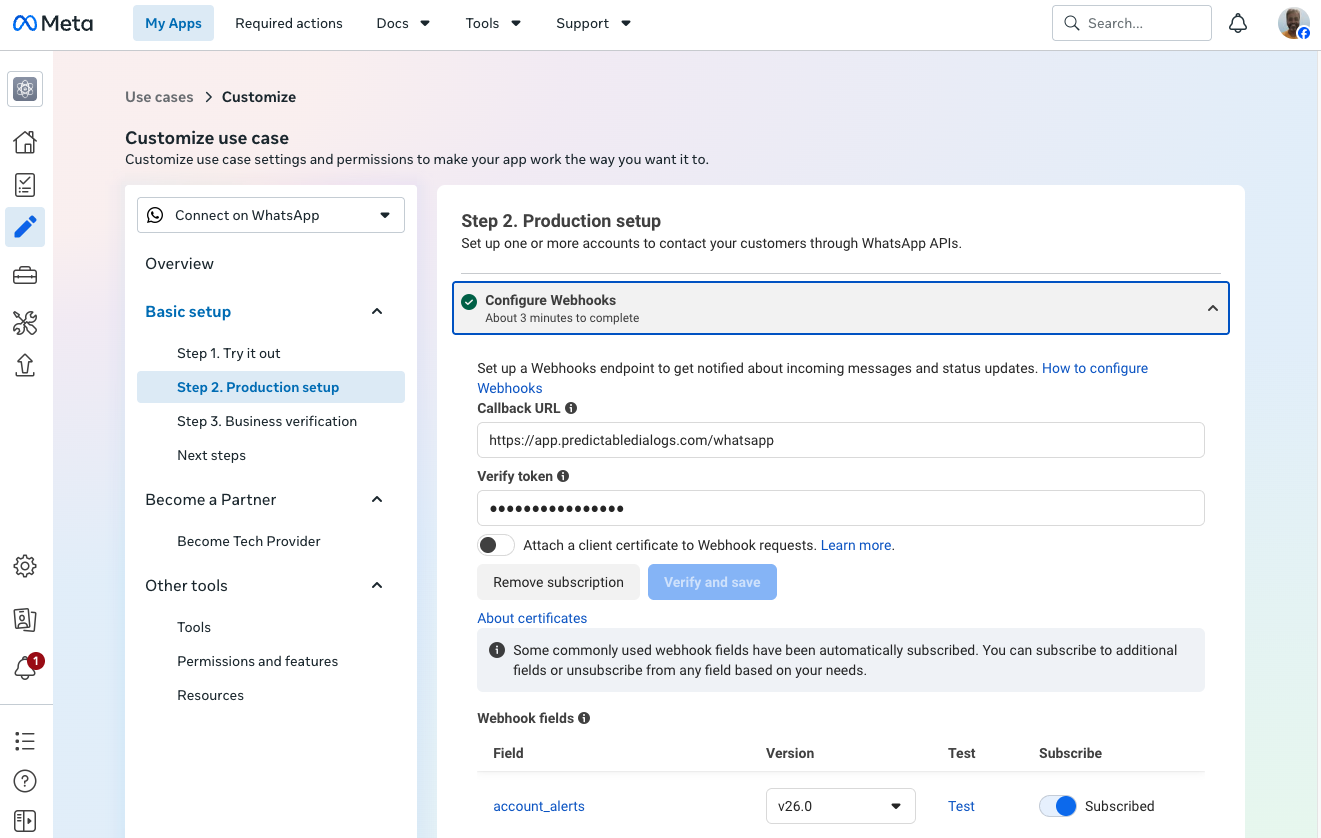
After adding the Phone Number ID in the Predictable Dialogs app, the next screen gives you the webhook URL and webhook token. Copy them one at a time and add them to the Configure Webhooks section in Step 2. Production setup in the Meta Console.
The Configure Webhooks section is just before the Register your WhatsApp phone number section completed in the previous page.
Add the webhook details
- In the Meta Console, go to Basic setup and click Step 2. Production setup.
- Open Configure Webhooks.
- Copy the webhook URL from Predictable Dialogs and paste it into Callback URL.
- Copy the webhook token from Predictable Dialogs and paste it into Verify token.
- Click Verify and save to save the webhook information.
Subscribe to messages
- After saving, return to Step 2. Production setup and open Configure Webhooks again.
- A new list called Webhook fields appears below this section.
- Search for the field called messages.
- Ensure the toggle at the end of the messages row is set to Subscribed. If it is set to Unsubscribed, click it to make it Subscribed.